
When using checkout fields customization plugin such as the Checkout Field Editor plugin, the VAT number field might not be added displayed on the checkout form as would be expected. This happens because such plugins usually will not recognize new fields added to checkout form after the custom field settings are saved by those plugins.
There are two possible solutions:
- Manually add the VAT Number field (recommended)
- Reset the checkout field customization plugin settings
Manually add the VAT Number field (recommended) #
See below the field settings you need to use to re-create the VAT Number field. We are using the Checkout Field Editor plugin adding the VAT Number field to the billing address section, but you could use other similar plugins as long as the field settings below are used:
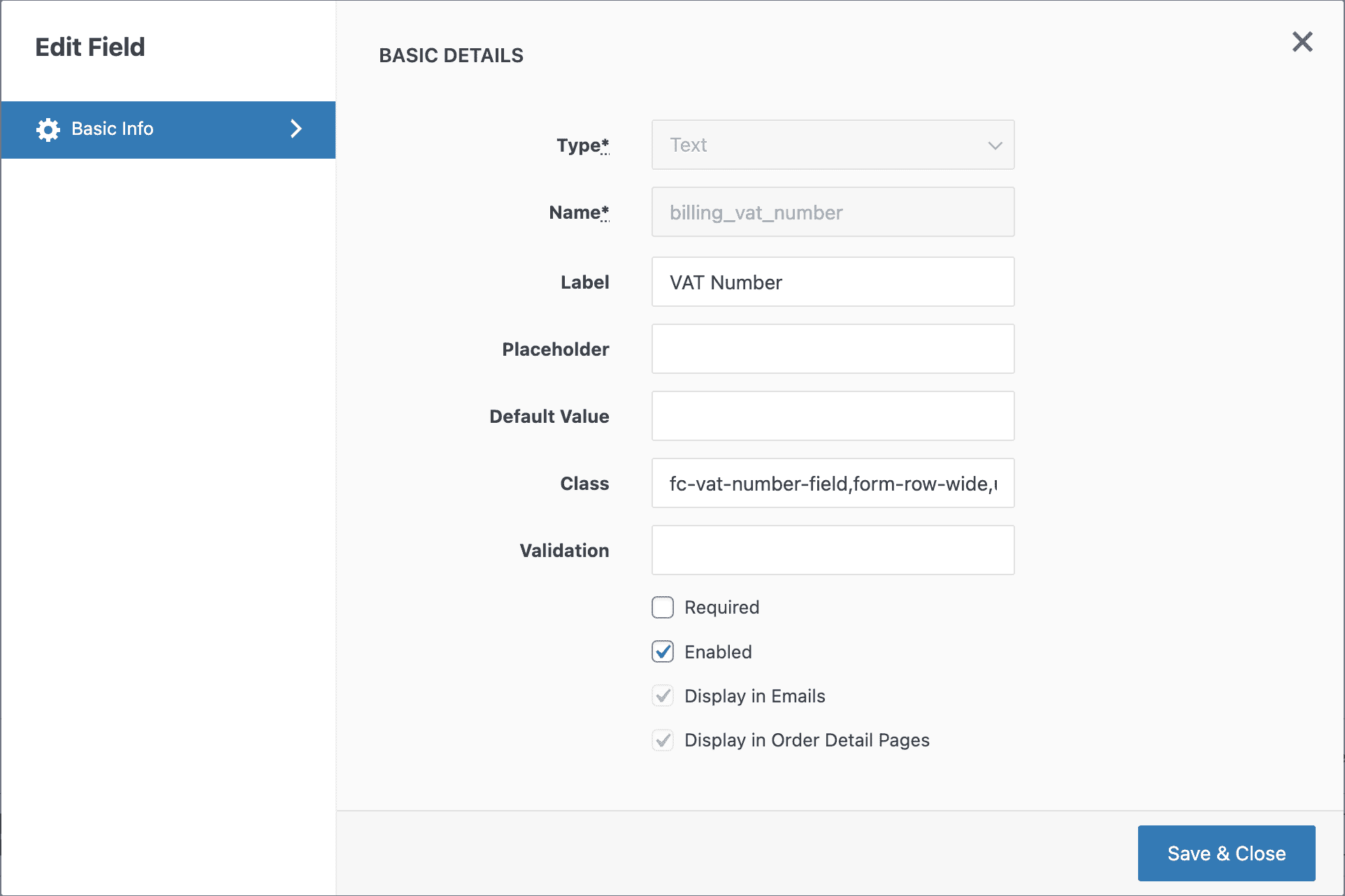
- Type:
text - Name:
billing_vat_number - Label:
VAT Number - Class:
fc-vat-number-field,form-row-wide,loading_indicator_on_change,has-description - Required: You can either set it as required (checked), or leave it as optional (unchecked) as per your needs.
- Enabled: Check this option so the field is displayed, otherwise it will not show up on the checkout form.
(Alternatively) Reset the checkout field customization plugin settings #
As an alternative solution, you could reset all the changes of the billing address section in the checkout fields customization plugin so it can pick up the new VAT number field that was added, but in this case you will lose your custom settings for the billing address fields and will need to make your changes again.
The steps to reset the billing fields customizations settings will depend on the plugin you are using to customize the fields on your website. As this is not our recommended solution, we will not add these steps here.