
Skip to content
Fluid Checkout
  • Demo
  • Features
  • Add-ons
    • Complete Bundle Save 42%
    • Fluid Checkout PRO
    • Google Address Autocomplete
    • Address Book
    • EU-VAT Assistant
  • Pricing PRO
  • Docs
  • Support
  • My account
0,00 € 0 items
Home / Docs / WooCommerce checkout layouts – Multi step, single step, 1 or 2 column layouts, and expansible order summary

How can we help?

Getting started

  • Do I need to uninstall the free version when upgrading to PRO, or is Fluid Checkout Lite required?
  • Getting Started with Fluid Checkout
  • Translate Fluid Checkout plugins into your language

Features

  • WooCommerce checkout layouts – Multi step, single step, 1 or 2 column layouts, and expansible order summary
  • WooCommerce edit cart on checkout — change quantity or remove items from the cart directly at the checkout page
  • Trust symbols — add security badges, trust seals and other trust symbols to strategic places on the checkout, cart and order received pages
  • Order pay – optimized and intuitive design for your WooCommerce Order Pay page
  • Local Pickup — WooCommerce Local Pickup hide shipping address when local pickup is selected
  • International phone numbers — WooCommerce checkout phone number validation and formatting based on country rules
  • Express checkout — quick payment buttons for Google Pay, Apple Pay and other payment methods
  • Design templates — match your brand styles on the WooCommerce Checkout template
  • Billing address positions — choose to display billing address before shipping, inside the shipping step or force shipping and billing address to a single section
  • Account matching / user matching — associate purchases with and existing customer account without logging in

Customizations

  • Change the icon or icon color for the cart button on mobile
  • Move the “Phone” field to the contact step
  • Configure cart quantity fields for decimal quantities
  • Change fields copied from shipping address to billing address
  • Move first and last name fields to the contact step
  • Customize Local Pickup location address and use multiple pickup locations
  • Customize button colors and other button styles
  • Customize colors of elements on Fluid Checkout
  • Customize template files for WooCommerce and Fluid Checkout
  • Customize checkout steps
  • Add custom house number field and make it required
  • Customize checkout fields and adding custom checkout fields
  • Safely add code snippets to your WooCommerce website

Compatibility

  • Compatibility with plugin SMS for WooCommerce by Zorem
  • Compatibility with plugin WooCommerce Smart Coupons by StoreApps
  • Compatibility with plugin Order Delivery for WooCommerce by Kestrel
  • Compatibility with plugin WooCommerce Germanized
  • Compatibility with plugin YITH WooCommerce Cart Messages Premium
  • Compatibility with plugin WooCommerce Delivery Slots by Iconic
  • Compatibility with plugin Mailchimp for WooCommerce
  • Compatibility with plugin WooCommerce Checkout Manager By QuadLayers
  • Compatibility with plugin Breakdance
  • Compatibility with theme Pressmart
  • Compatibility with theme Divi and the Divi Builder
  • Compatibility with WooCommerce Block-based checkout and cart forms
  • Compatibility with theme Botiga
  • Compatibility with theme Atomion
  • Compatibility with theme OceanWP
  • Compatibility with plugin Digits
  • Compatibility with plugin Storefront Powerpack
  • Troubleshooting – jQuery events or vanilla JavaScript events not working
  • Compatibility with theme ZK Nito
  • Compatibility with theme Woodmart
  • Compatibility with plugin “Plugin Organizer”

Troubleshooting

  • Troubleshooting – jQuery events or vanilla JavaScript events not working
  • Troubleshooting – Local pickup prevents customer from proving a shipping address, blocking other shipping methods
  • Troubleshooting – Trust symbols widgets randomly moving to other areas when switching themes

Account & Purchases

  • Can I get a refund for my purchase?
  • Finding my invoice, adding billing details and VAT number
  • New versions updates are not appearing on my website

Development

  • Troubleshooting – jQuery events or vanilla JavaScript events not working
  • Changelog format and semantic version numbers
  • Changelog – Fluid Checkout PRO & Lite
View Categories

WooCommerce checkout layouts – Multi step, single step, 1 or 2 column layouts, and expansible order summary

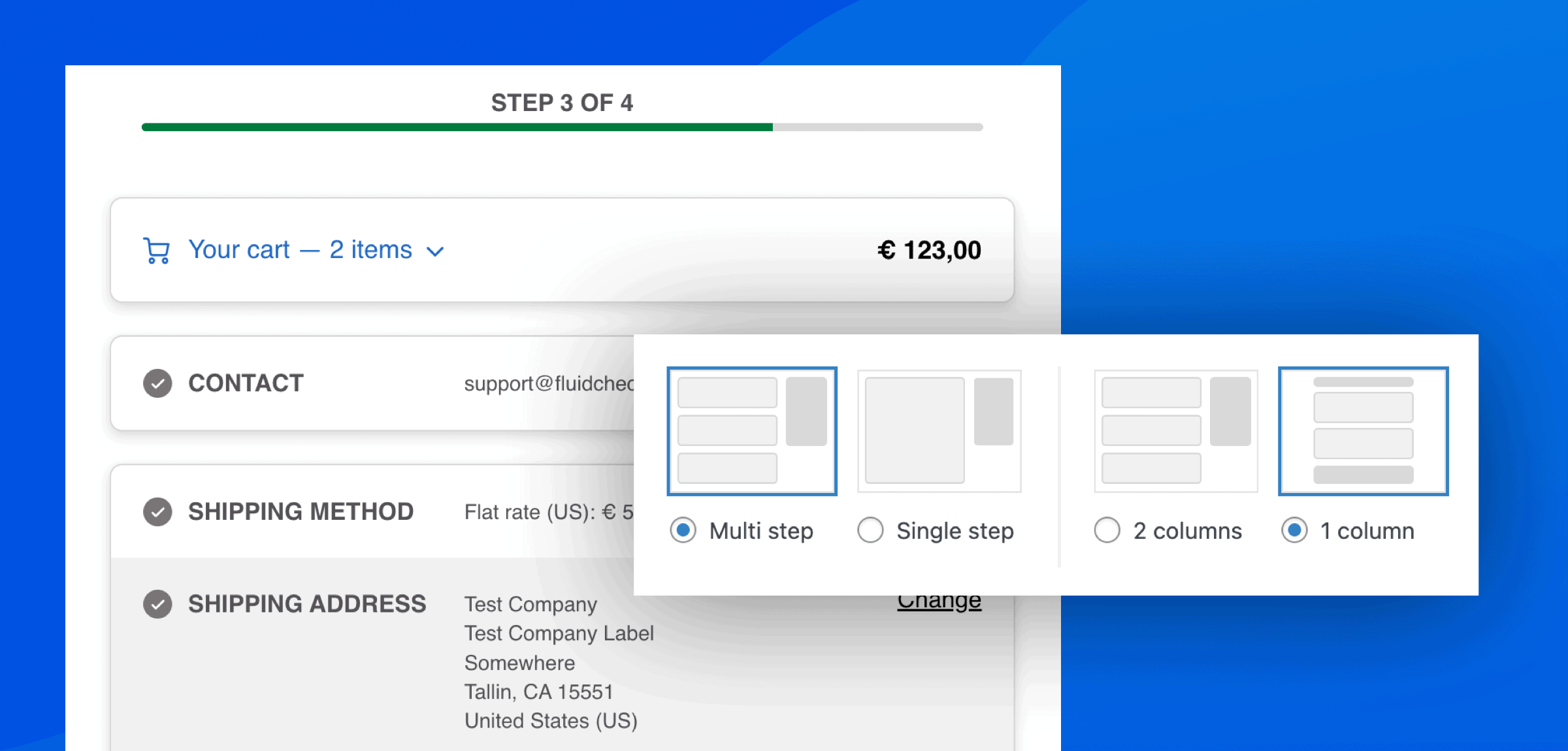
Checkout layout options and partial screenshot of how it looks on the checkout page.

Upcoming features: some of these features will be available with version Lite 4.2.0+ and PRO 3.2.0+, which will be released early March 2026. If you already have Fluid Checkout PRO and want early access to this feature, please contact our support team.

By default, Fluid Checkout will use the “Multi step” and “2 columns” layout options that show the order summary on a sidebar, which most people are familiar with, and will breakdown the checkout form into easy to fill checkout steps.

With Fluid Checkout PRO, you can choose between “2 columns” layout, or the “1 column” layout without sidebar, and between the “Multi step” and “Single step” layout options. Or you can choose to show the order summary at the top only on mobile devices.

On this page you can find information about the feature:

  • Switch to 1 column checkout layout
  • Expansible order summary at the top for mobile devices
  • Multi step vs Single step checkout layout

Switch to 1 column checkout layout #

With the 1 column layout, the checkout page will be displayed on a single column without a sidebar, and the order summary will be displayed in two parts:

  • An expansible section “Your cart” is displayed at the top, showing the products list, options to edit cart items at checkout, and the totals table;
  • The order summary will only display the totals table at the bottom, close the button “Place order”, so the customer can review the order before choosing to complete the payment.

The 1 or 2 columns layout applies to the checkout page, and optimized cart page and order pay page when these features are enabled.

How to enabling the 1 column layout #

  1. Go to WP Admin > WooCommerce > Settings > Fluid Checkout.
  2. Navigate to the sub-tab “Checkout”.
  3. Locate the “Layout & design” section at the top of the page, then locate the “Checkout layout” options.
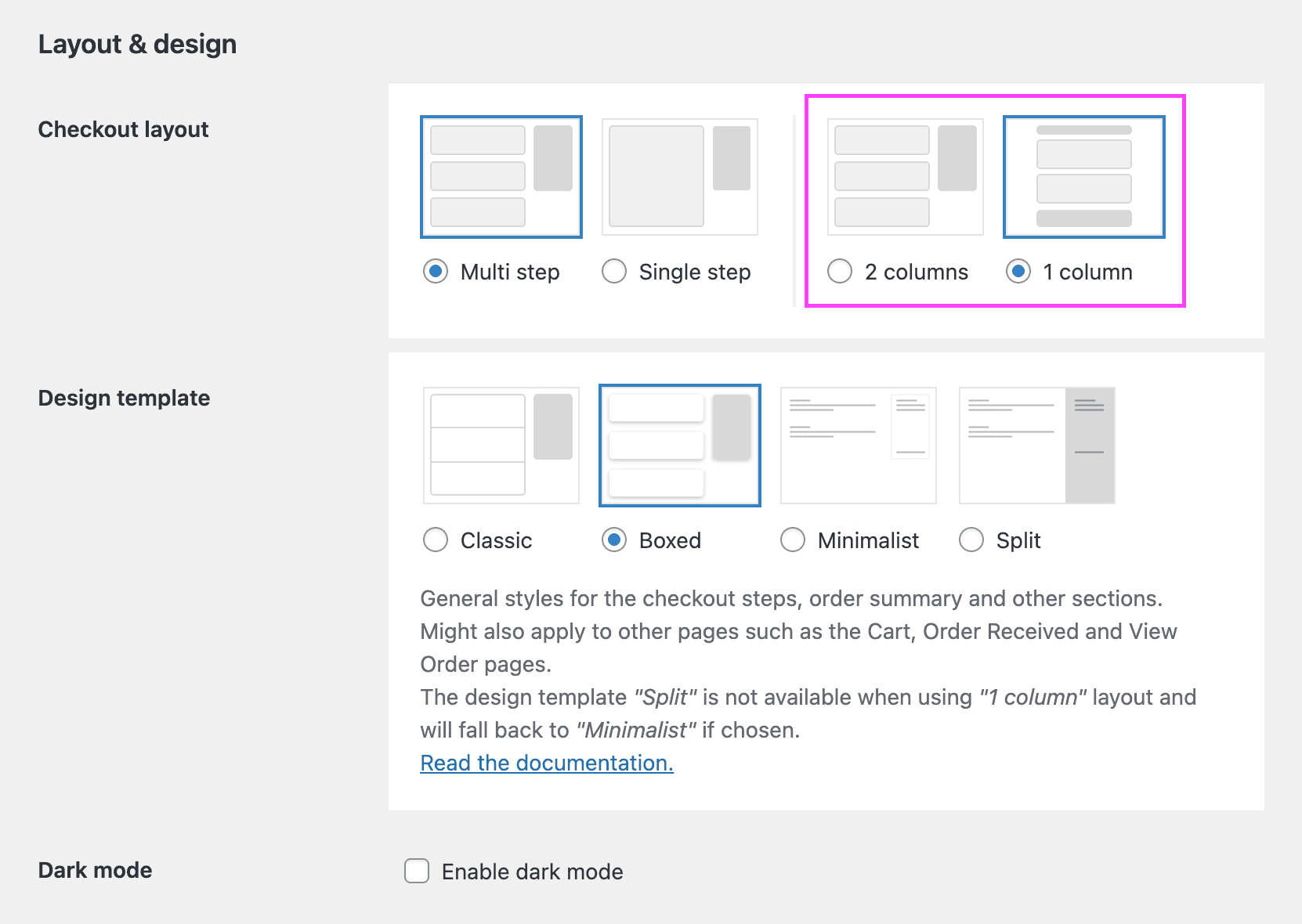
Screenshot of the checkout layout options, highlighting the column layout options.
  1. Choose the 1 column layout option.
    Please note that you will need Fluid Checkout PRO to unlock the 1 column layout option.
  2. Save your changes.

Required options for 1 column layout #

It is worth noting that the “1 column” layout requires that some other options are checked, but they will be automatically changed for you:

  • Order summary is always displayed before checkout steps: this options is necessary to display the expansible order summary section at the top before the checkout steps.
  • Split design template is not available: the split design only makes sense when using the 2 columns layout, so for this reason when if this design template is chosen together with the 1 column layout, the design template will be automatically changed to “Minimalist”.

Expansible order summary at the top for mobile devices #

The order summary can be displayed at the top of the page before the checkout steps. When this option is enabled, an expansible section “Your cart” will be displayed, showing the quantity of products in your cart and the total amount of the order. Once expanded, the list of products is then displayed with the options to edit cart items at checkout if that feature is enabled, and the order totals table.

If you are using the 1 column layout, this option will be automatically selected and cannot be changed.

It is also possible to show the order summary at the top only for mobile devices when using the 2 columns layout:

  1. Go to WP Admin > WooCommerce > Settings > Fluid Checkout.
  2. Navigate to the sub-tab “Checkout”.
  3. Locate the section “Checkout elements > Order summary”.
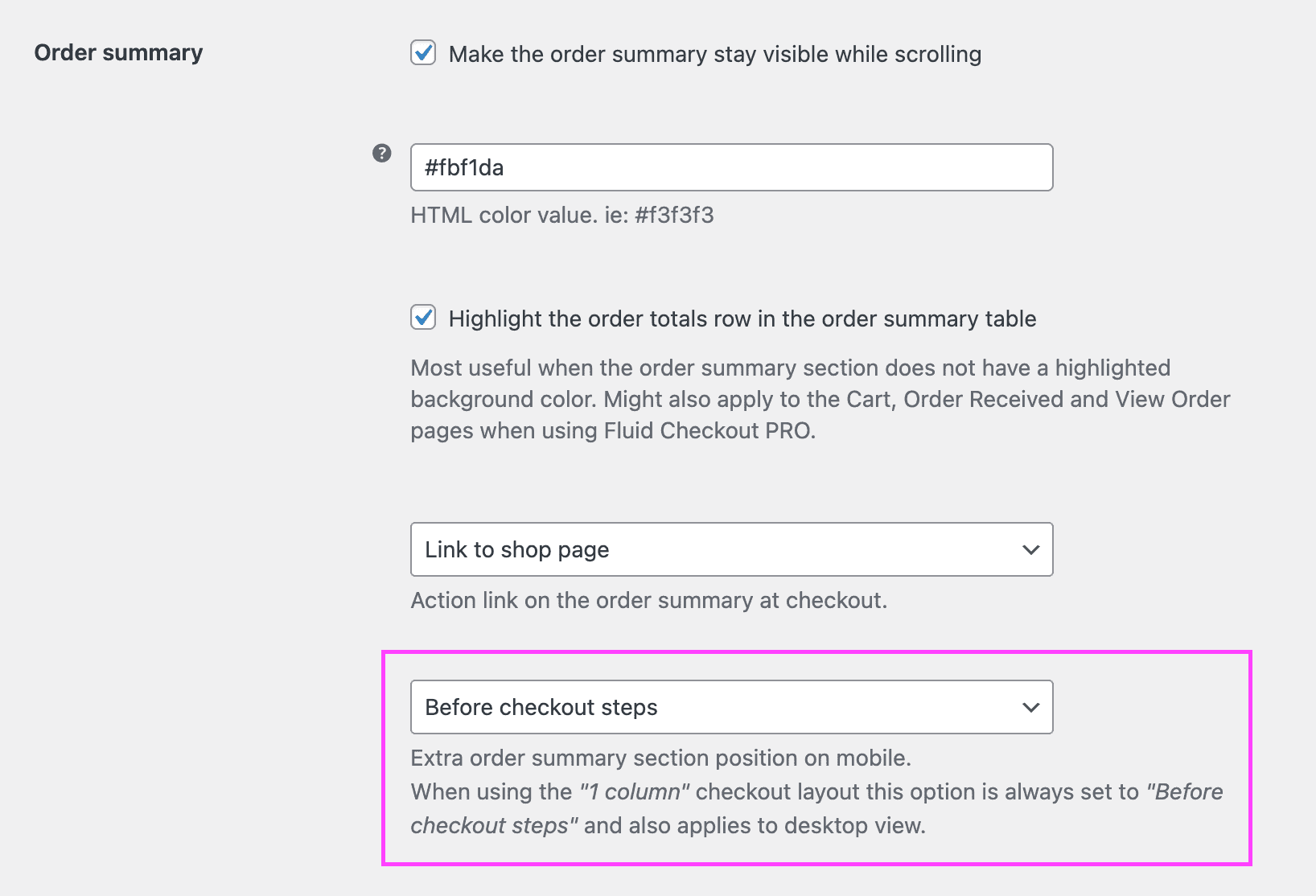
Screenshot of the order summary options, highlighting the order summary position option for mobile.
  1. Choose the option Before checkout steps.
    Please note that you will need Fluid Checkout PRO to unlock this option.
  2. Save your changes.

Multi step or Single step checkout layout for WooCommerce #

By default, Fluid Checkout will use the “Multi step” checkout layout and will breakdown the checkout form into 4 easy to fill checkout steps, revealing only the necessary fields for each step. Breaking down the checkout form into steps can reduce the perceived effort customers need to exert to complete purchases online, leading to higher conversion rates, according to findings from the research on checkout optimization by the Baymard Institute.

Yet, for some websites a single step with all the checkout fields displayed at one can have better conversion rates compared to multi step forms, specially when there are very few required fields. The Single step option for Fluid Checkout will show all the checkout steps sections already expanded at the beginning of the checkout process.

Switch between Multi step and Single step checkout layouts #

  1. Go to WP Admin > WooCommerce > Settings > Fluid Checkout.
  2. Navigate to the sub-tab “Checkout”.
  3. Locate the “Layout & design” section at the top of the page, then locate the “Checkout layout” options.
  4. Choose between “Multi step” and “Single step”.
  5. Save your changes.
Still stuck? How can we help?

How can we help?

Updated on December 22, 2025
Progress Bar Styles – checkout steps progress indicator
Table of Contents
  • Switch to 1 column checkout layout
    • How to enabling the 1 column layout
    • Required options for 1 column layout
  • Expansible order summary at the top for mobile devices
  • Multi step or Single step checkout layout for WooCommerce
    • Switch between Multi step and Single step checkout layouts
Fluid Checkout

Frictionless Multi-step Checkout for WooCommerce

© 2021-2025 Fluid Checkout OÜ

Terms | Refunds | Privacy Policy | Cookies

Products
  • All products
  • Fluid Checkout PRO
  • Fluid Checkout Lite
  • Google Address Autocomplete add-on
  • Address Book add-on
  • EU-VAT Assistant add-on
Company
  • Support
  • Careers Hiring
  • My account
  • About
  • Homepage
  • Homepage
  • Features
  • Pricing PRO
  • Docs
  • Demo
  • Support
  • My account